From NetEase Cloud Music to fnOS Music: Build Your NAS Music Library
2026-08-27
If you usually listen with NetEase Cloud Music but want to keep downloaded tracks in your own NAS, a straightforward local workflow connects the pieces: download on your computer, upload with fnOS Sync, convert and organize with KNAS Music Organizer, and then let fnOS Music read the resulting library.
KNAS Music Organizer does not download music. It only processes local files that you have obtained lawfully and placed on your NAS.
Before you start
Prepare the following:
- The NetEase Cloud Music desktop client for downloading tracks available to your account.
- fnOS Sync for uploading the desktop download folder to your NAS.
- An fnOS NAS with fnOS Music installed.
- KNAS Music Organizer, now available from fnOS App Center.
On the NAS, create separate staging and music-library folders. The staging folder receives source files from your computer, while the library folder stores final output. They must not be the same folder or contain each other.
Step 1: Download tracks with NetEase Cloud Music
Open the NetEase Cloud Music desktop client and confirm the download quality and folder in Settings. After downloading, use Download Manager to open the files on disk.
The client can keep files flat, group them by artist, or group them by artist and album. KNAS Music Organizer scans source folders recursively, so all three layouts work. The final output layout comes from your Organizer task and the track metadata instead of simply copying the source hierarchy.
Step 2: Upload the folder with fnOS Sync
Create an upload-only task in fnOS Sync:
- Select the NetEase Cloud Music download folder as the desktop source.
- Select the staging folder as the NAS destination.
- After the first synchronization finishes, confirm that the files are present on the NAS before creating an organization task.
A separate staging folder preserves the original download structure and prevents the synchronization client and final music library from changing the same files.
Step 3: Install Music Organizer from App Center
Open App Center on fnOS, search for the Chinese keyword “音乐,” and select “音乐整理,” developed and published by KNAS. Open its details and select Install.
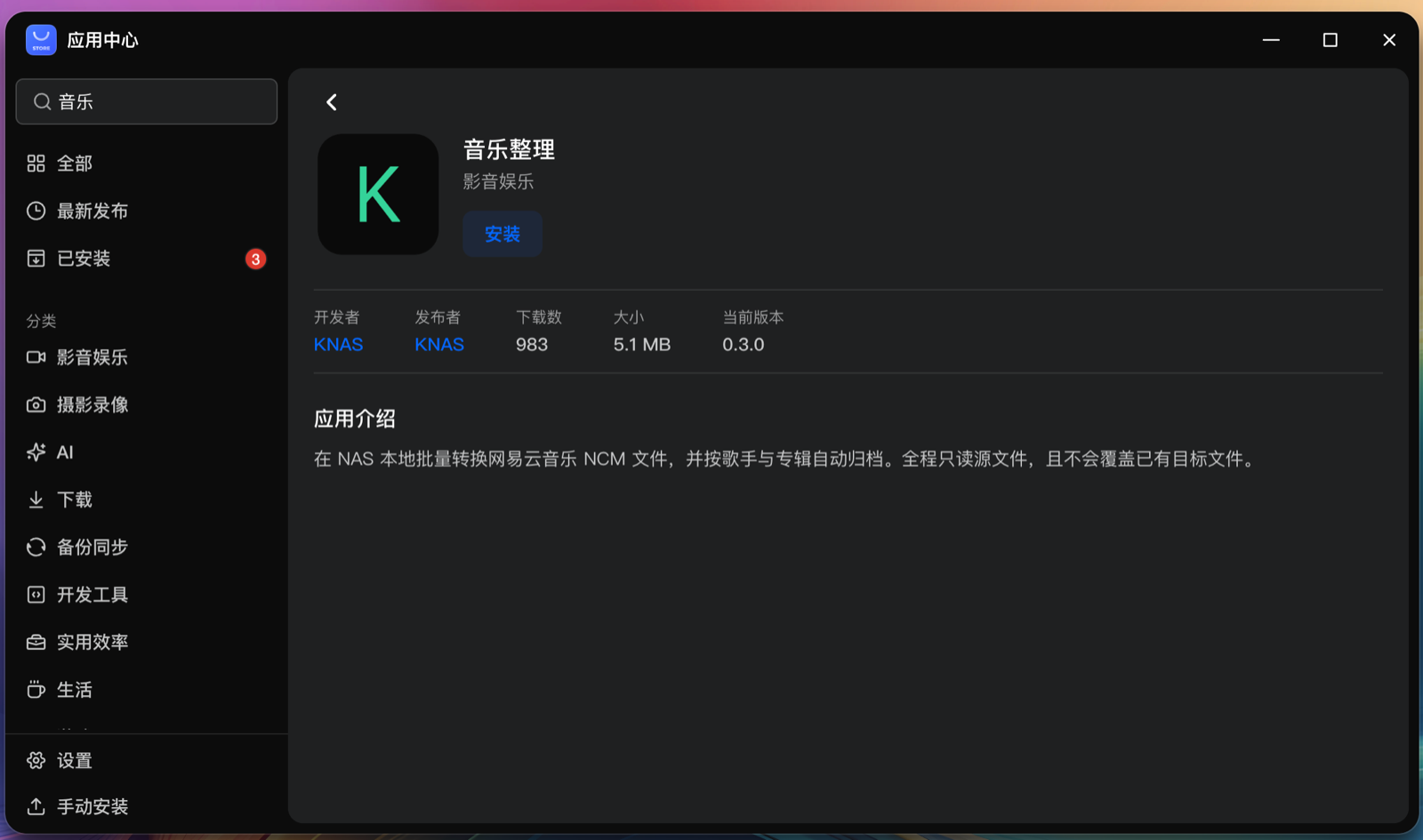
If the listing has not reached your device yet, or if you use FygoOS, return to the Music Organizer home page, download the x86_64 or ARM64 FPK that matches your processor, and use Manual Install in App Center.
Step 4: Create the first organization task
Open Music Organizer and create a task:
- Choose the staging folder used by fnOS Sync as the source.
- Choose the final folder read by fnOS Music as the target.
- Select a flat, artist-and-album, or album-and-artist archive layout.
- Scan first, review the file count, required space, and folders, then create and start the task.
NCM files are converted locally on the NAS. Existing MP3, FLAC, OGG, M4A, WAV, AIFF, Opus, DSF, and AAC files are read for metadata and copied without re-encoding their audio. Exact matching lyrics and eligible NCM artwork are carried to the output when available.
Step 5: Let fnOS Music read the output
Confirm that the Music Organizer target folder belongs to your fnOS Music library. Wait for the library to refresh after a task completes. If new tracks do not appear immediately, rescan that folder from fnOS Music.
KNAS Music Organizer creates a clean local file structure. It does not control fnOS Music scan timing, online metadata retrieval, or presentation.
Process only new tracks later
When you download more tracks, let fnOS Sync upload them to the same staging folder. Then open the menu for the completed Organizer task and select Scan for New Files.
The app reuses the source, target, and archive layout. A track with a valid history record and an existing output is not processed again. New source paths and tracks whose output is missing enter the new task. Read Keep processing the same download folder for the detailed rules.
File safety and boundaries
- Source files are opened read-only and are never deleted or modified.
- Existing output is skipped and never overwritten.
- Deleting a task removes its records and logs, not source or output files.
- Music Organizer does not provide music search, downloads, membership bypasses, or account-cookie features.
- NetEase Cloud Music download counts and quality remain subject to account entitlements and client rules.
Once configured, regular maintenance becomes a short “download, synchronize, scan for new files” loop that preserves the original staging folder while keeping a stable fnOS music library.